USB Drive Detected but Won’t Open? What to Check First
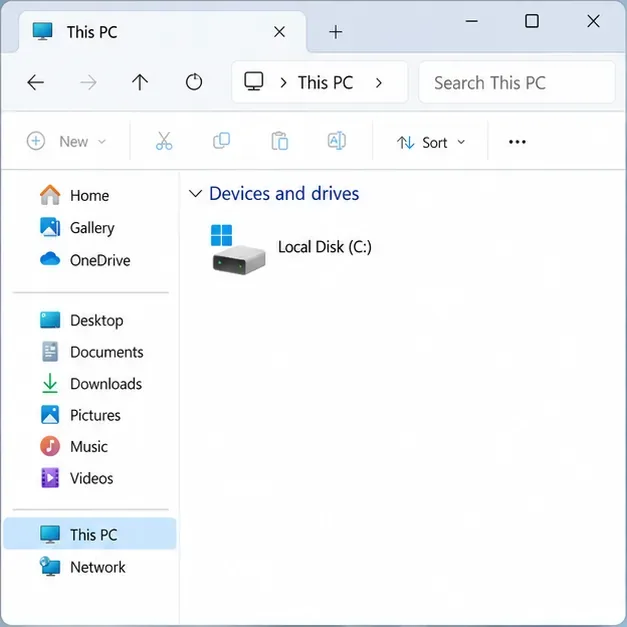
Check a detected USB drive safely in Windows or macOS. Learn what to inspect before assigning a drive letter, mounting a volume, or seeking recovery.
A video call can echo for only one participant because the problem is often in one person’s audio path or room, not in the call as a whole. A speaker may send another person’s voice back into a microphone; two devices in the same room may be connected at once; or the affected listener may hear a local monitoring loop that nobody else hears. The key clue is not just who reports the echo. Ask whose voice repeats and which people can hear it.
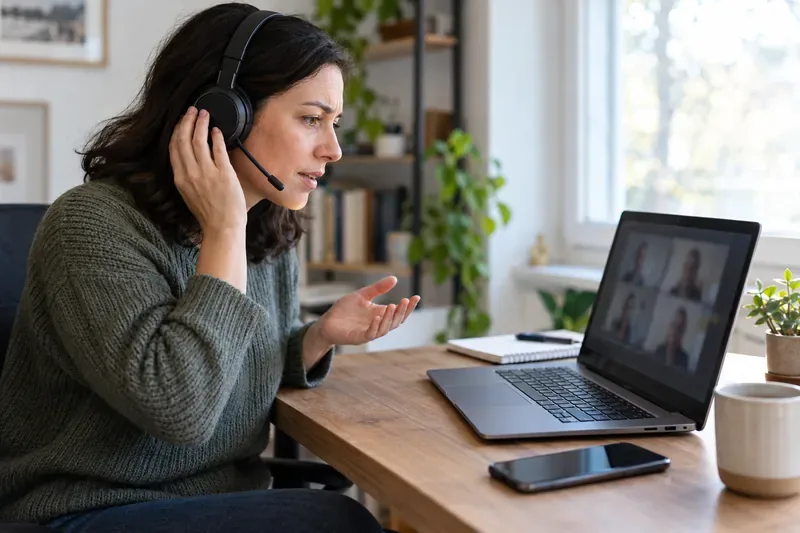
“Only one person has an echo” can describe different problems. If several people hear their own words repeated whenever one participant speaks, that participant’s device or nearby room is a likely place to test first. If only one person hears an echo of their own voice, the sound may be looping locally through their headset monitoring, operating system, recording software, or a second audio connection. If one person hears another participant repeat but nobody else does, inspect the listener’s own output and connected devices as well as the other person’s setup; the report alone does not identify the source.
| What people notice | What it suggests | First test |
|---|---|---|
| Several people hear their own speech repeat when the same person unmutes | That person’s speaker may be reaching their microphone, or their room may have a second active device. | Have that person use a headset, lower speaker volume, and disconnect audio on any extra phone or computer. |
| Only one participant hears their own voice repeated | A local monitor, audio loopback, headset sidetone, or duplicate join may be involved. | Ask whether anyone else hears it; then leave the call on any second device and check the local audio-routing settings. |
| The sound is delayed, choppy, or robotic rather than a clear repeat | This may be lag or a connection or processing problem rather than acoustic echo. | Test the network and device after checking the audio path. |
During a call, the app sends microphone audio to other participants and plays their audio through speakers or headphones. With speakers, some of that played sound can travel back into the microphone. The app’s acoustic echo cancellation tries to recognize and remove that return path. If the speakers are loud, the microphone is close, the room is reflective, or the cancellation system cannot handle the device setup, a copy can be sent back into the meeting. The person whose device creates the loop may not hear the echo themselves; other participants hear their own words return from that room.
A second common cause is joining the same meeting on more than one device with audio active. For example, someone may join on a laptop and also dial in on a phone, or a meeting-room computer and a personal laptop may both play call audio. Muting one microphone may not be enough if its speakers remain on. Zoom’s echo guidance specifically identifies computer-and-phone audio active together, nearby speakers, and multiple active computers in one room. Microsoft similarly warns that a personal device can cause echo if its audio stays on after joining a Teams Room.
Echo can also be limited to a particular headset, speakerphone, monitor, soundbar, microphone, or software route. Mismatching a microphone and external speaker can matter, and some Bluetooth headsets behave differently across meeting apps. Google Meet advises checking the selected microphone and speaker, trying a headset, lowering speaker volume, and checking headset compatibility. These are sensible first tests; they do not prove a device is defective.
Meeting apps include echo cancellation, but the control names and available options change. Start with the app’s normal or automatic setting rather than switching off audio processing at random. Zoom describes its advanced echo-cancellation controls as an option for technical troubleshooting and notes that settings can affect audio quality or system behavior. Change an advanced control only for a specific test, record what you changed, and restore the previous value if sound gets worse.
Network trouble more often presents as lag, gaps, or choppy or robotic speech than a clean copy of the same words. If the “echo” is really a long delay, test a stable connection, move closer to Wi-Fi, or temporarily try another network. Google Meet’s current guidance separates its echo tips—headphones, lower speaker volume, and muting when not speaking—from its network-quality suggestions. On Meet, its current help page also offers “Troubleshooting & help” recommendations when it detects a quality issue.
Use the platform documentation that matches the call. See Google Meet’s troubleshooting steps for echo and call quality, Google Meet’s microphone and speaker selection guide, and Zoom’s instructions for isolating an echoing attendee. For a Teams Room, check Microsoft’s room-joining audio instructions. Menus and features can vary by app version, device, and organization settings.
Keep a short note of the pattern: which participant unmutes, whose voice repeats, whether a second device is present, and which headset or app was used. That record helps separate a room feedback loop from a local monitoring setting or an app-specific fault. Ask the participant to test a different microphone and output device, and update the meeting app, browser, operating system, and headset firmware where the manufacturer recommends it.
If one participant hears the echo even when everyone else confirms the call is clear, focus first on that participant’s local audio routing and any recording, streaming, or accessibility software that could monitor the microphone. If everyone hears their own voice return from one person’s room, focus first on that room’s speakers and duplicate connections. If the echo persists across devices and apps after these checks, the app provider or device manufacturer can help investigate an audio-processing or hardware issue. A single person reporting echo is a useful clue, but it is not enough by itself to prove whose device is at fault.
Sources checked October 1, 2026. Menu labels and available audio controls can change; follow the current instructions for your app and device.
Check a detected USB drive safely in Windows or macOS. Learn what to inspect before assigning a drive letter, mounting a volume, or seeking recovery.
A one-person video call echo usually points to one device or room. Learn whose audio may be looping and how to isolate the cause safely.
Learn why social media photos may look softer, cropped, or different in color, and use a practical checklist to identify compression, display, HDR, and file-format causes.
Find out why a browser extension returns after removal, then check sync, management policies, and unwanted software with practical steps for Chrome, Edge, and Firefox.
Prepare for a lost phone or laptop by checking passkey sync, adding an alternate authenticator, securing account recovery options, and testing access in advance.
Find the right iPhone or Android setting to limit background mobile data, block cellular access for one app, or reduce usage across your phone.