USB Drive Detected but Won’t Open? What to Check First
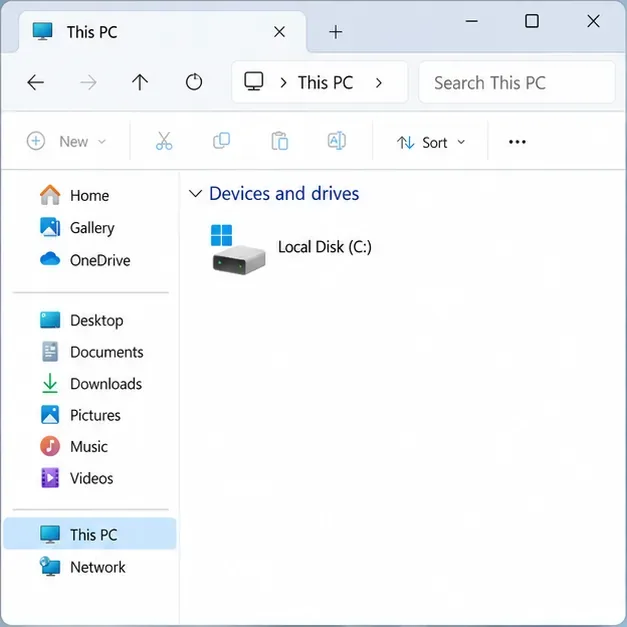
Check a detected USB drive safely in Windows or macOS. Learn what to inspect before assigning a drive letter, mounting a volume, or seeking recovery.
To stop one app from using mobile data when it is not open, restrict that app's background data or use your phone's data-saving mode. On Android, Data Saver blocks most background mobile data while still letting an app use data when you open it. On iPhone, you can turn cellular data off for a specific app, but that blocks its cellular connection both in the background and while you are using it; it can still use Wi-Fi. If you only want to stop background refresh on iPhone, change Background App Refresh or use Low Data Mode.
These controls solve slightly different problems. Choose the narrowest option that matches your need: block one app, restrict background activity across apps, or stop all cellular data temporarily. Menu names can vary by iOS version, Android manufacturer, carrier, and SIM setup. The paths below were checked against Apple, Google, and Samsung support pages on September 30, 2026.
Open Settings and look for Cellular or Mobile Data on iPhone, or Data usage on Android. Check the usage period shown on the device and compare it with your carrier's billing cycle. If the phone separates foreground and background totals, focus on the background figure. If it does not, look for a setting or detail page for the individual app.
On iPhone, go to Settings > Cellular and scroll to the app list. Apple shows app-level cellular usage and lets you switch cellular access on or off for each app. On Pixel phones, open Settings > Network & internet > Internet, tap the settings icon next to the carrier, then choose App data usage. Samsung's general route is Settings > Connections > Data usage > Mobile data usage. Apple notes that the carrier can provide the most accurate current-period total, because its accounting may differ from the phone's counter. Start here before changing settings, especially if a sudden increase might instead be caused by a large foreground download or streaming session.
Go to Settings > Cellular (or Mobile Data), scroll to the app, then turn its switch off. That app will use Wi-Fi for network access instead of cellular data. This is the most direct option if a social, video, or shopping app should never consume your mobile plan, including while you are actively using it.
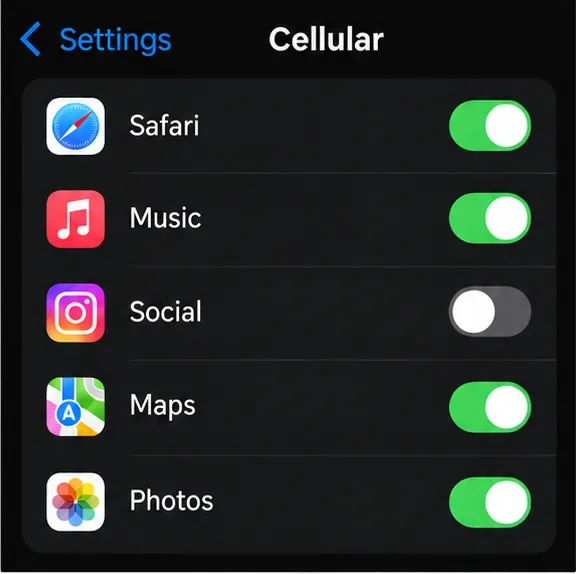
This per-app switch is broader than a background-only restriction: the app may not load new content over mobile data until you turn the switch back on or connect to Wi-Fi. Keep cellular access enabled for apps that need to work on the go, such as maps, ride services, or messaging, if you rely on them outside Wi-Fi coverage.
Go to Settings > General > Background App Refresh. Depending on the available options, choose Wi-Fi instead of Wi-Fi & Cellular Data, or turn Background App Refresh off for selected apps. Apple describes this feature as allowing suspended apps to check for updates and new content. Turning it off can delay feed or content updates, but it is not the same as disabling the app's cellular connection; an app may still use data when open or through other allowed system activity.
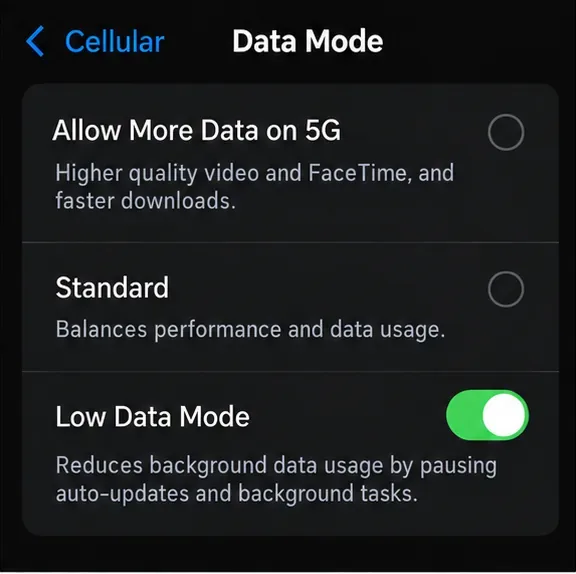
Low Data Mode is a broader alternative. Go to Settings > Cellular > Cellular Data Options; on some 5G setups, open Data Mode, then turn on Low Data Mode. Apple says it pauses automatic updates and background tasks while the iPhone is not on Wi-Fi, and apps may reduce network activity. It also affects downloads, backups, streaming quality, and Background App Refresh, so use it when you want general restraint rather than a strict block on one app. Low Data Mode can also be set separately for a Wi-Fi network.
Android's exact route depends on the phone. On many devices, open Settings > Network & internet or Connections > Internet or Data usage, select the mobile network, then open the app's data-usage details. Turn off a control labeled Allow background data, Background data, or a similar name. On current Galaxy support pages, the route is Settings > Connections > Data usage > Mobile data usage, choose the app, then turn off Allow background data usage.
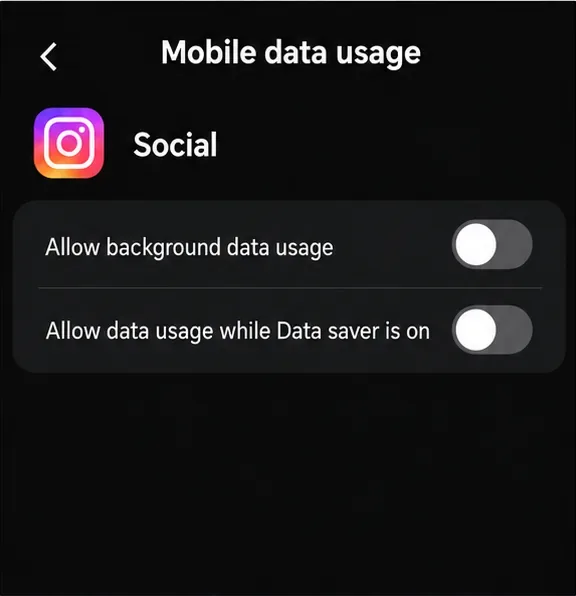
This setting targets background transfers, such as refreshing a feed or syncing while you are not using the app. It usually still allows the app to use mobile data in the foreground when you open it. That makes it a good first choice when notifications or updates are not important but you still want the app to work normally on cellular data.
Turn on Data Saver for a wider restriction. On Pixel, open Settings > Network & internet > Data Saver and switch it on. On Galaxy, open Settings > Connections > Data usage > Data saver and turn on the feature. Google says most apps and services then get background data only over Wi-Fi, while active apps can still use mobile data. Samsung describes its Data Saver as preventing some apps from sending or receiving data in the background.
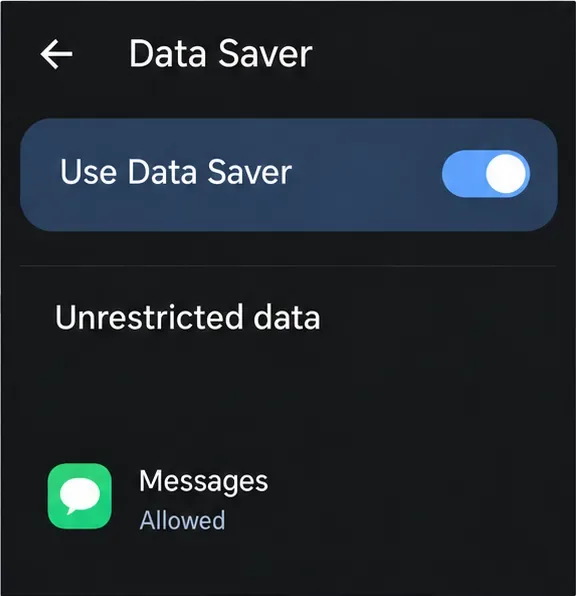
Use the Unrestricted data or allowed-apps list for services that must remain connected. Messaging, email, security alerts, cloud backups, and some health or location features may update less often when restricted. If a specific app needs to keep working, allow it as an exception rather than disabling Data Saver for the whole phone.
Background restriction alone may not prevent foreground use. On iPhone, switch cellular access off for that app. On some Galaxy phones, Settings > Connections > Data usage > Allowed networks for apps lets you set a particular app to Wi-Fi only; availability varies by model and carrier. Other Android phones may not offer an equivalent per-app foreground block in the standard Settings app. If you cannot find one, keep the app's background data restricted and use Wi-Fi, or turn off mobile data for the whole phone when you need a complete pause.
Do not confuse app background-data controls with battery restrictions. Battery settings can limit when an app runs, but they do not necessarily prohibit all mobile-data use. Likewise, iPhone's Background App Refresh controls one kind of background update, not every possible network connection. Pick the network control if the goal is to reduce a mobile bill.
After changing a setting, use the phone normally for a day or for a meaningful portion of your billing period, then return to the same app-usage screen. Compare the app's background total or overall cellular total with the previous period. A data counter may update with a delay, and app activity or a new download can make the total rise even after background access is restricted. Check your carrier's account or usage page before treating a small difference as proof that a setting failed.
If use continues, verify that you changed the setting for the active SIM or mobile network, and check whether Data Saver exceptions, dual-SIM settings, a hotspot, or another app with the same service name is involved. Restarting is not normally required for a saved toggle, but reopening Settings and confirming that the switch stayed off can catch an unsaved change. Restore an app's access if you miss time-sensitive alerts or updates.
Check a detected USB drive safely in Windows or macOS. Learn what to inspect before assigning a drive letter, mounting a volume, or seeking recovery.
A one-person video call echo usually points to one device or room. Learn whose audio may be looping and how to isolate the cause safely.
Learn why social media photos may look softer, cropped, or different in color, and use a practical checklist to identify compression, display, HDR, and file-format causes.
Find out why a browser extension returns after removal, then check sync, management policies, and unwanted software with practical steps for Chrome, Edge, and Firefox.
Prepare for a lost phone or laptop by checking passkey sync, adding an alternate authenticator, securing account recovery options, and testing access in advance.
Find the right iPhone or Android setting to limit background mobile data, block cellular access for one app, or reduce usage across your phone.