USB Drive Detected but Won’t Open? What to Check First
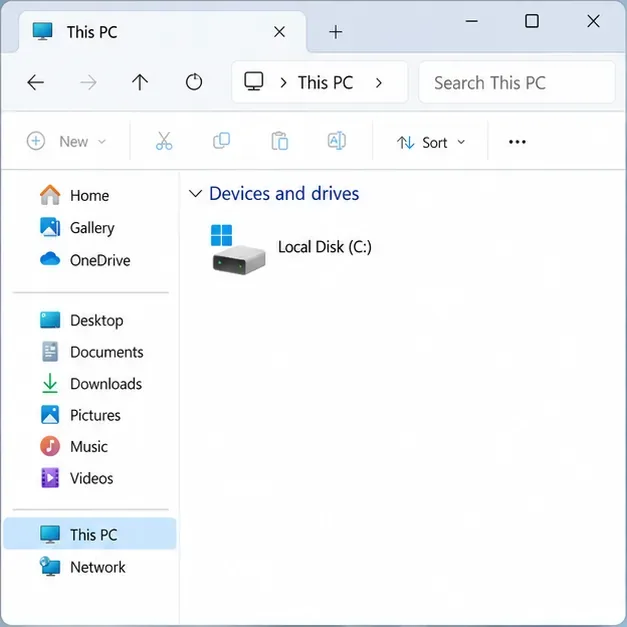
Check a detected USB drive safely in Windows or macOS. Learn what to inspect before assigning a drive letter, mounting a volume, or seeking recovery.
Hypothetical example: Morgan uses a passkey on one phone to sign in to personal email, a financial account, and a photo service. Before a work trip, Morgan notices there is no tested way to get into those accounts if the phone is lost. This is an example, not a real person’s experience. A useful recovery plan gives Morgan more than one route back in, without weakening the accounts or relying on the missing phone.
Start before a device disappears: identify where each passkey is stored, add a second sign-in method where the service permits it, secure the account that syncs the passkeys, and test the recovery route while the original device still works. Passkey behavior varies by service and credential manager, so the plan should be checked account by account.
Morgan starts with the accounts that would be hardest to recover: the main email account, the password manager or passkey provider, financial accounts, cloud storage, and work or school sign-in. For each one, Morgan records:
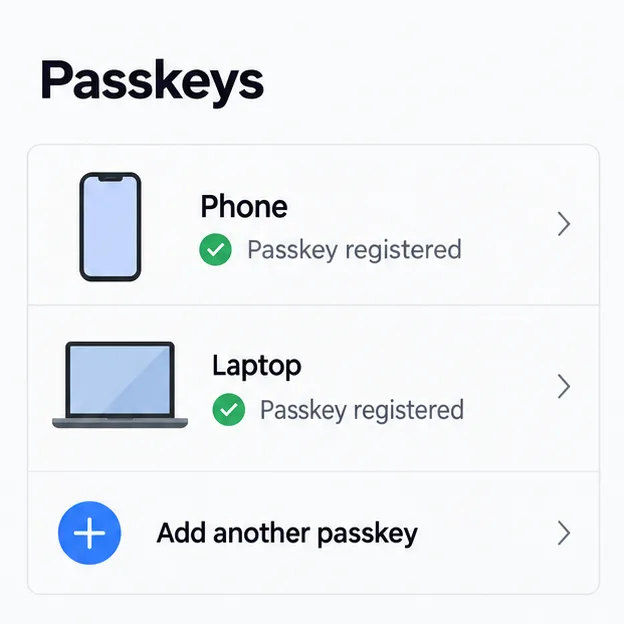
A passkey can be synced or device-bound. A synced passkey may be restored through its provider on a replacement device, if that provider supports syncing and Morgan can recover the provider account. A device-bound passkey stays with one authenticator, such as a compatible security key; losing that authenticator can mean using a separate registered credential or the service’s account-recovery process. The FIDO Alliance passkey guidance describes these differences and notes that security keys can serve as a recovery credential when the service accepts them.
Morgan checks whether the passkey provider syncs credentials across Morgan’s own devices. If it does, Morgan turns on the provider’s documented sync and recovery features, then confirms the second personal device is signed in to the correct provider account. A synced passkey can help with a lost phone, but it is not an independent backup if Morgan also cannot access the provider account that restores it.
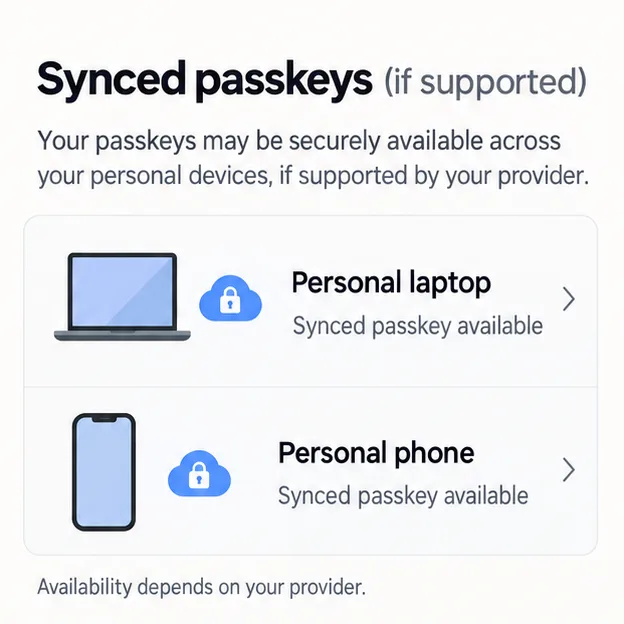
Where a service allows it, Morgan adds another passkey from a second device that Morgan controls. Google, for example, documents creating passkeys on multiple devices and on compatible FIDO2 security keys. Apple says iCloud Keychain can keep passkeys current across approved devices when sync is enabled. The exact setup steps and recovery protections differ, so use the provider’s own instructions rather than assuming that signing in on a new phone will restore every credential.
Do not create a passkey on a shared or public computer. Google warns users to create passkeys only on devices they personally own and use. Also avoid confusing the phone’s screen-lock PIN with an account recovery code: the PIN unlocks that device and may be part of passkey use, but it does not by itself recover the account on a replacement device.
For an account that supports FIDO security keys, Morgan considers registering two compatible keys: one used regularly and a spare stored separately in a secure place. A physical key can provide a route that does not depend on the lost phone or the same synced credential store. It only helps for services where Morgan registered it in advance, and a lost key must itself be replaced or removed from accounts.
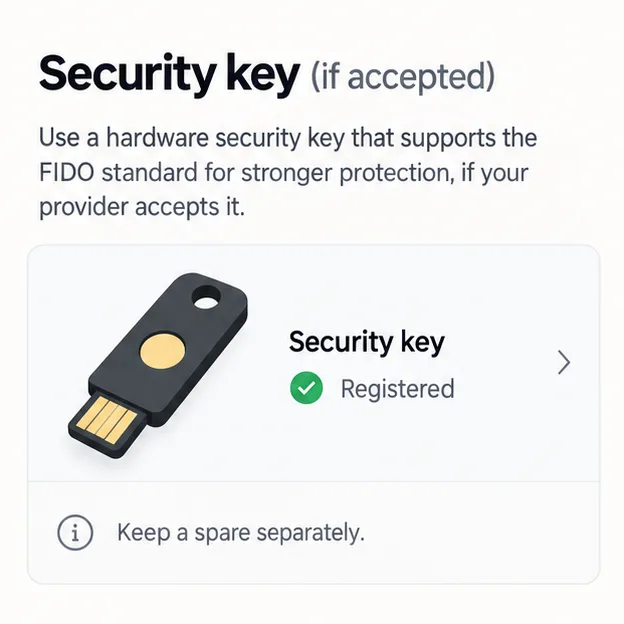
Morgan checks the service’s sign-in settings for language such as “security key,” “passkey,” or “add sign-in method.” A key that is physically nearby but not registered to the account is not a recovery plan. For a work or school account, Morgan checks with the organization’s administrator first; Microsoft notes that organization policy can limit passkey options for managed accounts.
Morgan confirms the service’s fallback methods while still signed in. Depending on the account, that may include a current recovery email or phone, a trusted recovery contact, backup codes, a password plus a second factor, or a formal account-recovery form. These options are not interchangeable, and some services do not offer all of them.
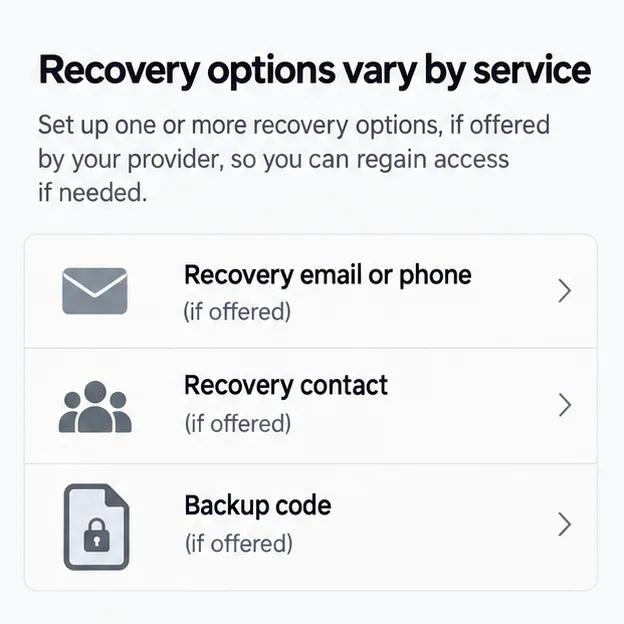
If Morgan saves a recovery code, it is kept somewhere private and separate from the phone and from the only password manager that might be inaccessible. Use the service’s instructions for generating and replacing codes; some codes are single-use, and some providers invalidate an older set when a new one is created. Do not email a code to yourself, put it in a screenshot synced to the lost phone, or share it with someone who contacts you unexpectedly. A recovery email should itself have a working recovery route, or the plan can become circular: the email account needs the phone that the email is meant to help recover.
Apple users can review whether iCloud Keychain sync is enabled and consider setting up an Apple Account recovery contact. Apple says a recovery contact can help recover account access, and its support guidance describes recovery of iCloud Keychain when all devices are lost. Google users can keep current recovery details and generate backup codes for supported sign-in flows. For a managed Microsoft work or school account, follow the organization’s recovery policy rather than relying on a personal fallback.
Morgan uses a second personal device to confirm that the alternate passkey or security key appears and works for at least the highest-priority accounts. Morgan keeps the original signed-in session open until the test succeeds. For one-time recovery codes, Morgan checks where the codes are stored and reads the provider’s instructions without consuming a code just to test it. The test should answer three practical questions: Can I reach the credential manager? Can I sign in to the important accounts without the phone? Can I reach the account-recovery contact or method if the credential manager is unavailable?
Review the plan after replacing a phone, changing a password manager, switching between Apple and Android devices, changing a recovery email or phone number, or removing an old security key. Keep a short private inventory of which account has which fallback; do not include actual passkeys, passwords, PINs, or recovery codes in the inventory.
Use the device maker’s official lost-device tool to lock or mark the device lost. From a device you still control, review account sessions and remove the lost device’s passkey or sign-in session where the account offers that control. A passkey stored in a third-party credential manager may also need to be removed there; deleting a passkey from one account screen does not necessarily remove every stored copy. Google’s passkey help explains how to remove passkeys for a lost device and sign out of listed devices. If a work device or account is involved, contact the organization’s IT team promptly.
For Morgan, the useful outcome is not a promise that a lost phone can never cause trouble. It is a tested path that does not depend on that one phone: a restored synced passkey if available, another registered authenticator where supported, and a secure recovery method for the provider account itself. Since exact features and screens change, Morgan checks the current instructions for each provider before travel.
Check a detected USB drive safely in Windows or macOS. Learn what to inspect before assigning a drive letter, mounting a volume, or seeking recovery.
A one-person video call echo usually points to one device or room. Learn whose audio may be looping and how to isolate the cause safely.
Learn why social media photos may look softer, cropped, or different in color, and use a practical checklist to identify compression, display, HDR, and file-format causes.
Find out why a browser extension returns after removal, then check sync, management policies, and unwanted software with practical steps for Chrome, Edge, and Firefox.
Prepare for a lost phone or laptop by checking passkey sync, adding an alternate authenticator, securing account recovery options, and testing access in advance.
Find the right iPhone or Android setting to limit background mobile data, block cellular access for one app, or reduce usage across your phone.