USB Drive Detected but Won’t Open? What to Check First
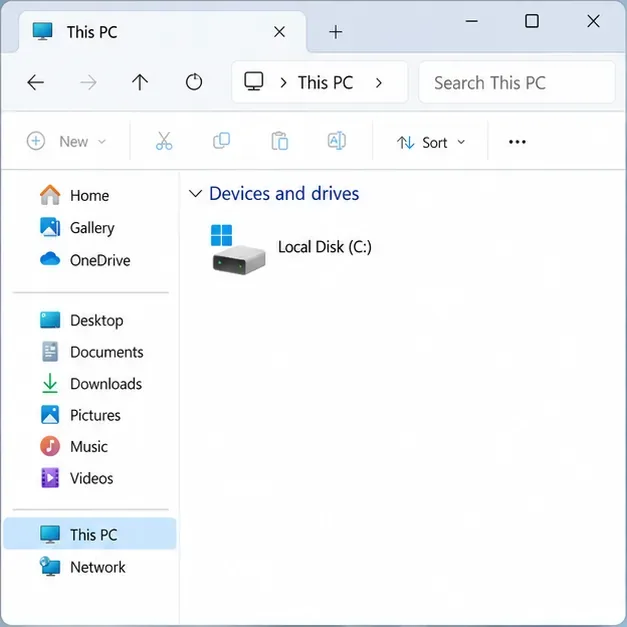
Check a detected USB drive safely in Windows or macOS. Learn what to inspect before assigning a drive letter, mounting a volume, or seeking recovery.
An extension that comes back after you remove it can make it seem as if the browser ignored you. Often, though, a different mechanism is putting it back: browser sync, a work or school policy, or another program that installed or manages the add-on. Those explanations call for different fixes. Repeating the Remove command without finding the trigger may only restart the cycle.
There is no single newly verified browser change that explains every recurring extension. The practical approach remains to identify the browser profile and extension, remove it once, then check what is restoring or enforcing it. A recurring extension does not by itself prove that a device has malware; it can also be expected behavior on a managed computer.
First make sure you are looking at the same browser and profile where the extension reappears. Chrome, Edge, and Firefox each keep their own add-ons, and a browser can have more than one profile. A toolbar icon can also be hidden without uninstalling the extension.
Open the browser’s extensions manager. In Chrome, enter chrome://extensions in the address bar, find the add-on, and choose Remove. In Edge, open Extensions > Manage extensions, then remove the item. In Firefox, open Add-ons and themes, select the extension’s menu, and choose Remove. If the extension is merely switched off, disablement is not the same as removal.
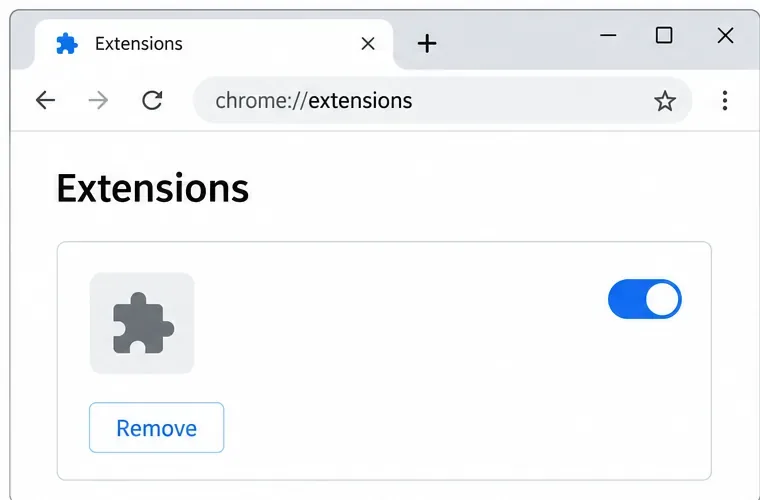
These menu labels can shift slightly between browser releases. The official instructions for Chrome extensions, Edge extensions, and Firefox add-ons describe their current removal paths. Note the extension’s name and, if shown, its publisher before removing it; that helps you recognize whether the same item returns or a similarly named one appears.
If the extension disappears and then returns after you sign in, turn sync off for extensions temporarily and remove it again. Chrome’s sync controls include extension information, so a synced profile can be relevant. The precise settings path and wording can vary by browser version and account setup. In Chrome, open Settings and look under the sync controls for the option to manage what is synced; turn off Extensions, then remove the add-on. Check other computers signed in to the same browser account as well. Remove the extension there or leave extension sync disabled until you are sure the unwanted copy no longer returns.
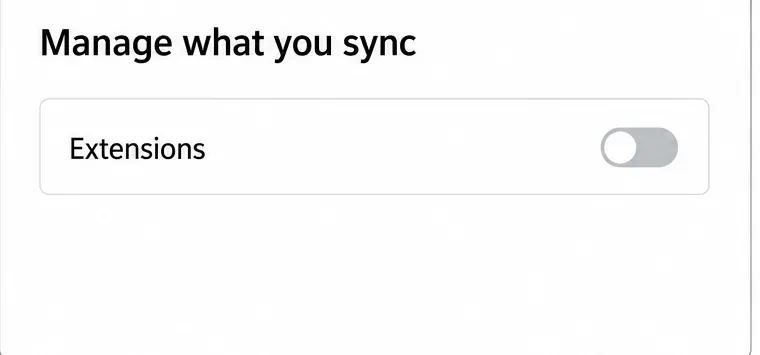
Use this as a test, not as proof of the cause. If the extension stays gone while extension sync is off, that points toward a synced device or profile; it does not identify which device added it. The Chrome sync documentation explains that extension information can be part of synced browser data. Avoid deleting all account data or resetting every browser setting just to test one extension. If you use another browser, check its own account-sync settings because controls differ.
An extension can be installed by an administrator policy that ordinary users cannot override. On a personal Chrome computer, enter chrome://management and chrome://policy in the address bar. In Edge, check edge://policy. Firefox may show that the browser is managed in Settings and provide a Policy Details view. The exact presentation depends on the browser and its version.
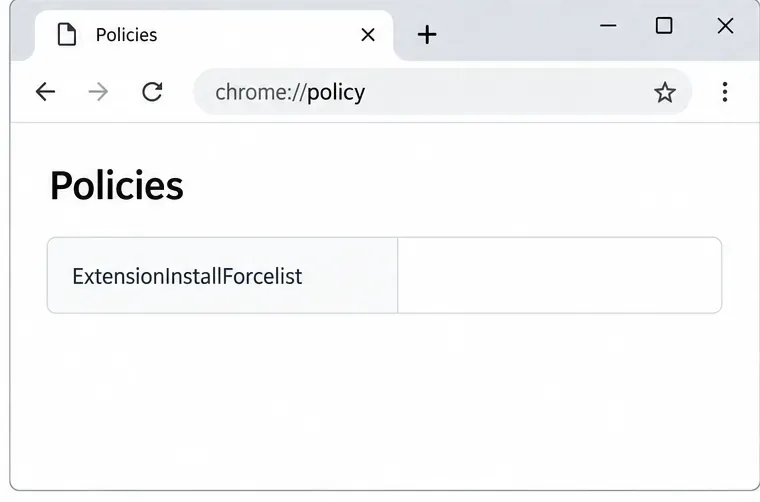
A message such as “Managed by your organization” is not automatically evidence of infection. It may be legitimate on a work or school device, or may come from security software that manages browser settings. If the computer belongs to an employer or school, ask its administrator to confirm whether the extension is required; do not try to bypass the policy. On a personally owned device, an unfamiliar extension policy deserves investigation. Google’s Chrome management guidance explains how to inspect management status, and Microsoft documents that an Edge force-install policy can make an extension unavailable for user removal.
Do not delete registry entries, policy files, or system folders based on a random online instruction. Those changes can break legitimate work controls or damage browser configuration, and the visible policy may be set again by the program that owns it. If you manage the device yourself and the policy is unfamiliar, first identify recently installed apps and security tools, then use their official support instructions.
Some extensions arrive with another desktop program or are restored by a companion app. If the extension returns after a browser restart even with sync off and no legitimate management policy, review apps installed around the time the problem began. Remove a program only if you recognize it as unwanted or can verify that it is the source; use your operating system’s normal uninstall process. Firefox’s support guidance notes that some add-ons are installed by other software and may need to be removed through that software.
Then update the browser and run a scan with built-in or reputable security software. On Windows, open Windows Security, choose Virus & threat protection, then Scan options; a full scan is one available option. A scan can find some unwanted software, but a clean result does not prove that a browser policy or synced profile is not responsible.
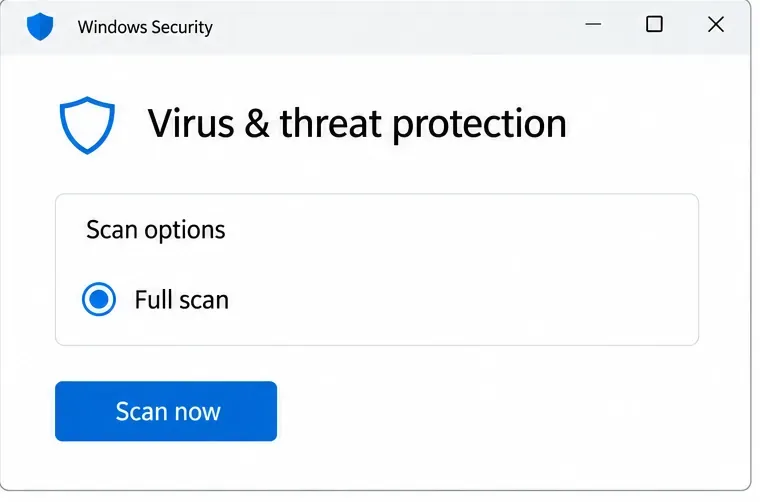
Google lists recurring extensions, unfamiliar toolbars, changed search or home pages, redirects, and persistent pop-ups among signs that unwanted software may be affecting Chrome. One symptom alone is not a diagnosis. If you also see unknown apps, repeated redirects, or security warnings, stop interacting with suspicious pop-ups and use trusted security tools or a qualified support professional. The official Chrome guidance for unwanted ads and malware describes additional symptoms and cleanup steps. Windows’ Virus & threat protection instructions explain the available scan controls.
Escalate promptly if an unknown policy appears on a personal device, the browser changes search settings or opens unfamiliar pages repeatedly, or security software reports a threat. Contact your organization’s IT team on a managed device. On a personal computer, avoid downloading a “cleaner” advertised in a pop-up; use your operating system’s security app or a security provider you already trust.
After the relevant change, restart the browser and revisit its extensions manager. Confirm the exact unwanted item is absent, then check again after signing in or enabling sync. If it returns, note when it happens: immediately after restart, after account sign-in, or after a particular app launches. That timing helps distinguish a profile-sync issue from a policy or software installer. If no cause is clear, share the browser name and version, extension name, device ownership, and any management message with the browser’s official support channel or your IT administrator.
Make one change at a time and keep the browser’s normal security protections enabled. This gives you a useful check without treating an ordinary sync or workplace policy as malware, while making it easier to spot a genuinely unwanted program.
Check a detected USB drive safely in Windows or macOS. Learn what to inspect before assigning a drive letter, mounting a volume, or seeking recovery.
A one-person video call echo usually points to one device or room. Learn whose audio may be looping and how to isolate the cause safely.
Learn why social media photos may look softer, cropped, or different in color, and use a practical checklist to identify compression, display, HDR, and file-format causes.
Find out why a browser extension returns after removal, then check sync, management policies, and unwanted software with practical steps for Chrome, Edge, and Firefox.
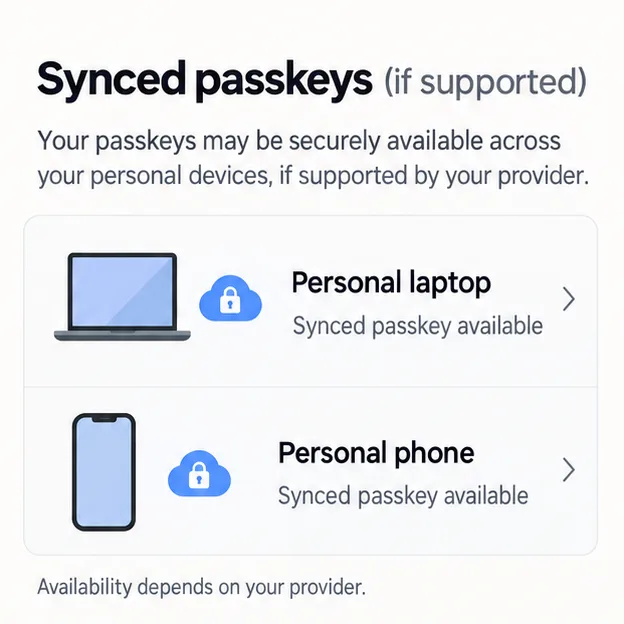
Prepare for a lost phone or laptop by checking passkey sync, adding an alternate authenticator, securing account recovery options, and testing access in advance.
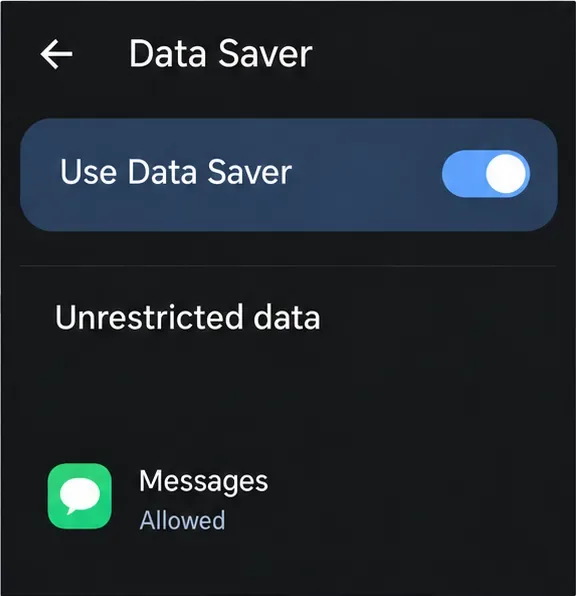
Find the right iPhone or Android setting to limit background mobile data, block cellular access for one app, or reduce usage across your phone.