USB Drive Detected but Won’t Open? What to Check First
Check a detected USB drive safely in Windows or macOS. Learn what to inspect before assigning a drive letter, mounting a volume, or seeking recovery.
If a USB drive is detected but does not open, first protect any files on it. A drive can appear to the computer as a USB device while its volume is not mounted or does not have a usable drive letter. Check the cable and port, then look in the operating system’s disk utility before making changes. Do not format, initialize, create a new volume, or run a repair command if you need files from the drive and do not have a backup.
This guide covers Windows and macOS. Screen examples below illustrate where to look; exact appearance can vary by operating-system version. The sample volume names, statuses, and file-system labels in the pictures are not readings from your device.
“Detected” can mean only that the computer notices a USB connection. It does not guarantee the drive’s file system is readable or that its volume has been mounted for browsing. File Explorer or Finder may not show the volume even when a disk-management utility lists the device. The next check is whether the computer sees a usable volume and, if so, whether it has a mount point such as a Windows drive letter.
If the answer is yes, treat the first steps as inspection only. Stop copying to the drive and avoid formatting, initializing, deleting partitions, creating a new volume, or choosing an erase option. Those actions can make recovery harder or destroy data. A “Format this drive” prompt is not proof that the USB is empty; it can appear when the system cannot read the current file system.
If the contents are irreplaceable and the device shows errors, repeatedly disconnects, becomes unusually hot, or makes a connected external drive click or spin down, stop repeated attempts and consider a reputable data-recovery service. A flash drive has no moving disk parts, but USB connectors and storage electronics can still fail. If the files are backed up or the drive is genuinely new and empty, you have more options; destructive steps should still be deliberate.
Disconnect the drive once, check for visible damage or debris without inserting anything into the connector, and reconnect it directly to another USB port on the computer. Avoid a hub or dock for this test. If the drive has a separate cable or power supply, check those connections too. A different port or computer can help distinguish a computer-side issue from a drive-side issue, but a drive failing on multiple computers may need professional attention.
Do not keep unplugging a drive while a light is blinking or while a copy is in progress. If the computer still lists the drive but opening it hangs, wait for the current operation to stop responding before ejecting or disconnecting it. Safe removal options vary by operating system and device.
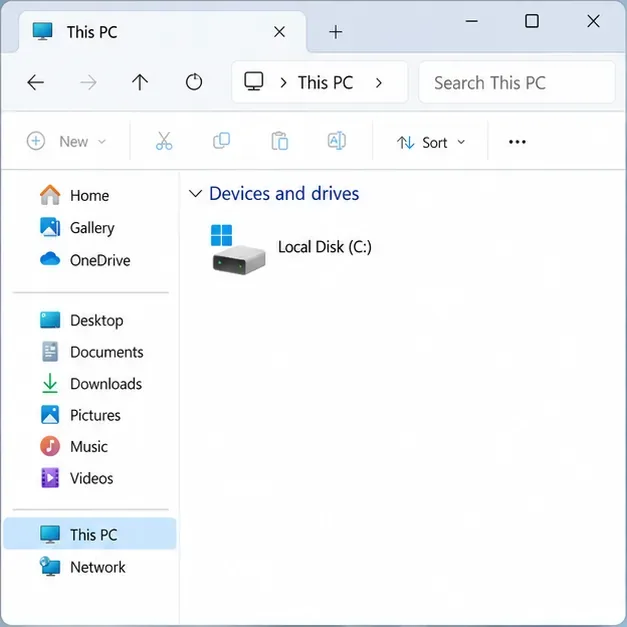
On Windows, open File Explorer and select This PC. On a Mac, check Finder’s sidebar under Locations and the desktop if external disks are shown there. If the USB volume is listed, select it once and note any message, such as access denied, a request for an encryption password, or a format prompt. Do not accept a format prompt when you need the existing files.
Windows: Search for Disk Management and open the result named Create and format hard disk partitions. Find the removable disk by its size and layout, and be certain it is the USB drive before selecting anything. Microsoft describes Disk Management as the built-in tool for viewing disks and volumes and changing drive letters. This first look is for observation: check whether the volume appears, whether it has a letter, and whether Windows reports it as Healthy, RAW, Unallocated, or Not Initialized.
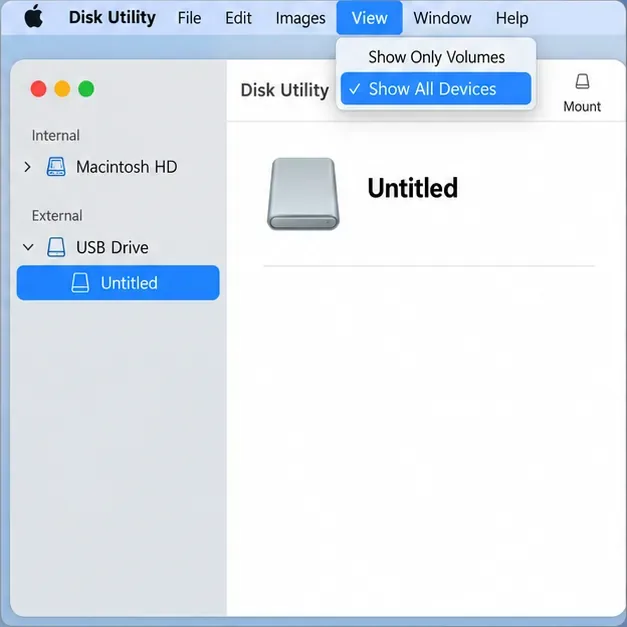
Mac: Open Disk Utility from Applications > Utilities. Choose View > Show All Devices so the sidebar displays the physical device and any containers or volumes beneath it. A device listed in Disk Utility but missing from Finder is a different situation from a device that does not appear in Disk Utility at all.
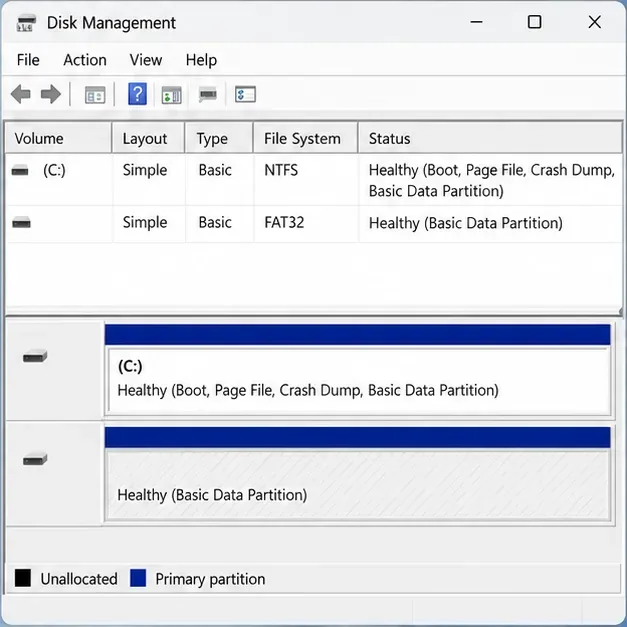
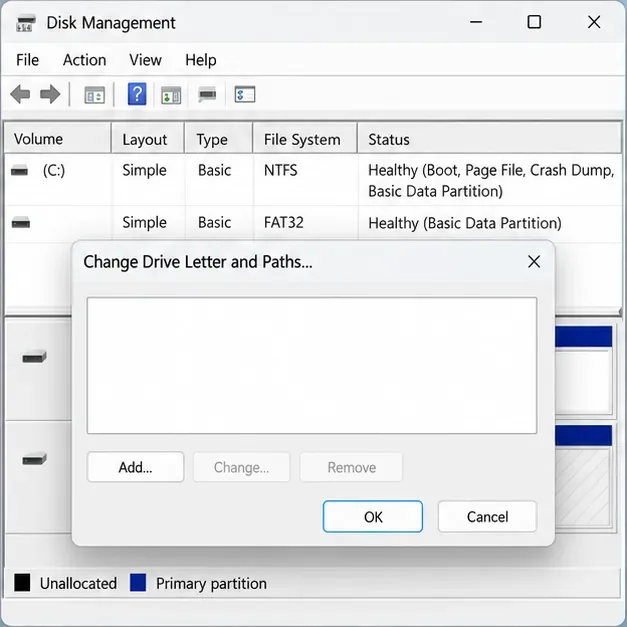
If Disk Management shows a recognizable, healthy data volume with a file system but no drive letter, assigning an unused letter may make it appear in File Explorer. Right-click the correct volume, choose Change Drive Letter and Paths, select Add, choose an available letter, and confirm. Do this only when you have identified the USB partition—not a system, recovery, or unfamiliar partition. If the option is unavailable, the volume may not be ready for a letter; do not initialize it just to make the menu active.
On a Mac, if Disk Utility lists the expected volume and offers Mount, select the volume and try Mount. Apple documents this for a volume that has been ejected. If mounting fails or Disk Utility reports an error, do not erase the device to make it visible when you still need its contents.
These labels point to a different problem than a missing drive letter. RAW means Windows does not recognize a file system for that volume. Unallocated means Windows does not see a partition occupying that space. Not Initialized means Windows lacks usable disk initialization information. They can describe a new, empty drive, but on a drive that previously held files they may reflect corruption or a failing device. They do not prove the drive is blank.
| What you see | What to do next |
|---|---|
| Healthy data volume, no letter | Confirm the correct USB partition, then consider adding a drive letter. |
| Mac volume listed but not mounted | If the data matters, avoid erasing; try Mount once if offered, then note any error. |
| RAW, Unallocated, or Not Initialized | If you need the files, stop before formatting, initializing, or creating a volume; seek recovery advice. |
| Device absent from Disk Management or Disk Utility | Check a direct port, cable, and another computer; persistent absence may indicate hardware trouble. |
| Opens on one operating system but not another | Check file-system compatibility, encryption, and permissions before considering any reformat. |
Sometimes. A drive formatted for one operating system may not behave the same way on another, and encryption or permissions can require a password, account, or compatible utility. Apple notes that macOS may read an NTFS-formatted external drive but does not support writing to NTFS with Disk Utility. That limitation usually affects saving files rather than opening the volume, so it is not a reason to reformat a drive that will not open. If a drive prompts for a password, use the original password or the manufacturer’s documented unlock method; do not erase it to bypass encryption.
Pause and get help if the drive repeatedly disconnects, makes the computer freeze, appears as RAW or Unallocated despite containing needed files, produces read errors, or is missing from disk utilities on more than one computer. For valuable files, a data-recovery specialist can assess the device before further repair attempts. For a backed-up drive, follow the manufacturer’s support guidance or the operating system’s repair guidance. Apple recommends having a current backup before using Disk Utility First Aid; Microsoft warns that formatting destroys data.
Before you finish, confirm which outcome applies: the USB is absent from the operating system, the device is listed but its volume is not mounted, the Windows volume lacks a letter, the file system or security method is unsupported, or the disk reports a potential data problem. Recording the exact message and the operating system version gives technical support useful information without requiring risky trial and error.
Check a detected USB drive safely in Windows or macOS. Learn what to inspect before assigning a drive letter, mounting a volume, or seeking recovery.
A one-person video call echo usually points to one device or room. Learn whose audio may be looping and how to isolate the cause safely.
Learn why social media photos may look softer, cropped, or different in color, and use a practical checklist to identify compression, display, HDR, and file-format causes.
Find out why a browser extension returns after removal, then check sync, management policies, and unwanted software with practical steps for Chrome, Edge, and Firefox.
Prepare for a lost phone or laptop by checking passkey sync, adding an alternate authenticator, securing account recovery options, and testing access in advance.
Find the right iPhone or Android setting to limit background mobile data, block cellular access for one app, or reduce usage across your phone.